
Audio Devices
Configure audio input and output sources for the modem
Audio devices are the physical (or virtual) sound interfaces that graywolf’s Rust modem uses to receive and transmit audio. Each radio channel is bound to an audio device for input and optionally one for output.
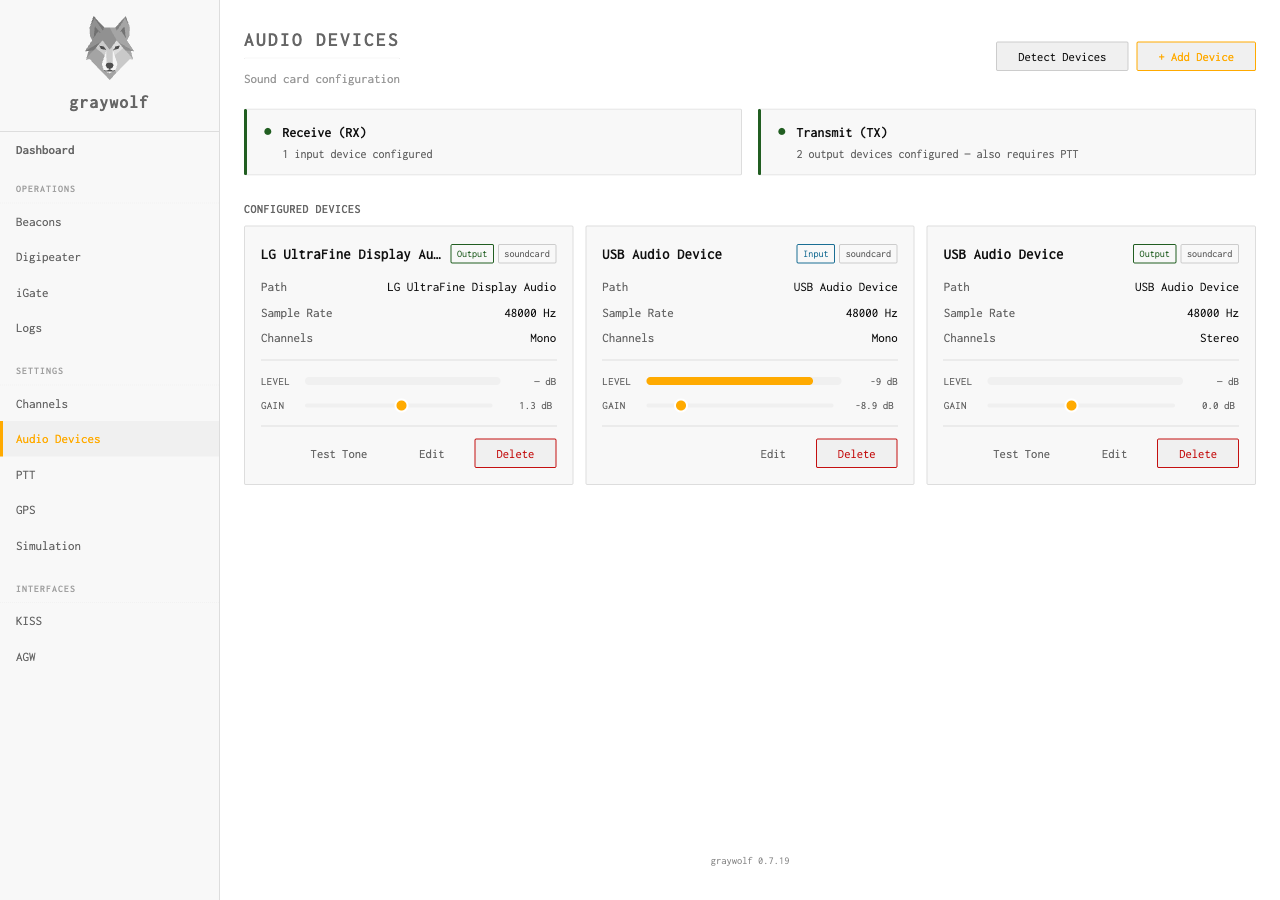
Detect Devices
Click Detect Devices at the top of the page to scan attached sound cards and pre-fill an entry. Adapters that graywolf recognises as a known APRS interface (Digirig, AIOC, SignaLink, and so on) are flagged as Recommended so you can pick them with one click. You can still use + Add Device to enter a device manually.
Across the top of the page graywolf tells you whether Receive and Transmit are ready. A green light on Transmit means there’s an output device configured — you also need PTT set up before the rig actually keys, and the page reminds you of that right there.
Running in Docker and Detect Devices finds nothing?
Detection opens each sound card to probe it, which needs
audio-group access to /dev/snd. The
container image runs as a non-root user, so besides
--device /dev/snd you must add
--group-add audio (Compose: group_add: [audio]).
Without it, arecord -l still lists the card — it
only reads /proc/asound — but detection comes up
empty. See Installation → Docker.
Source Types
| Type | Description | Use Case |
|---|---|---|
soundcard |
System audio device via CPAL (ALSA on Linux, CoreAudio on macOS) | Normal operation with a radio |
flac |
FLAC audio file playback | Offline testing and benchmarking |
stdin |
Raw signed 16-bit little-endian PCM from standard input | Piping audio from another process |
sdr_udp |
UDP listener for SDR audio streams | Software-defined radio input |
Device Settings
| Field | Default | Description |
|---|---|---|
name |
— | Human-readable label shown in the UI |
direction |
— | input or output |
source_type |
— | One of: soundcard, flac, stdin, sdr_udp |
source_path |
— | Device name (for soundcard) or file path (for flac) |
sample_rate |
48000 |
Sample rate in Hz |
channels |
1 |
Always mono. If the device only supports stereo, Graywolf opens it in stereo and extracts a single channel automatically. |
format |
s16le |
Sample format (signed 16-bit little-endian) |
gain_db |
0 |
Software gain in dB (−60 to +12, 0 = unity) |
Soundcard Setup
For a typical setup with a USB sound card connected to a radio, create
an input device and (if transmitting) an output device. The
source_path should match the ALSA device name as shown by
arecord -l or aplay -l.
Use a dedicated USB sound card rather than your computer’s built-in audio. Devices like the Digirig, SignaLink, or a simple USB dongle provide clean audio isolation between your radio and computer.
Custom ALSA Devices and Lower CPU Use
Graywolf matches the device name you enter against the names ALSA
advertises to applications. ALSA's shorthand forms like
plughw:0,0 or hw:1 work, and Graywolf maps
them to the canonical plughw:CARD=<name>,DEV=0 form
automatically.
A custom PCM you define in ~/.asoundrc — for example
to share a sound card between programs or to resample — is only
visible to Graywolf if you give it a hint block so ALSA
lists it. Add hint { show on } and the device appears in
the picker like any other:
pcm.snoopaioc {
    type plug
    slave.pcm "dsnoop:CARD=0,DEV=0"
    hint { show on; description "Shared / resampled capture" }
}
Running lighter on a Raspberry Pi. On a
resource-constrained board you can cut CPU use by capturing at a
lower sample rate. Wrap your card in a plug PCM as
above and set the device's sample_rate to
8000. 8 kHz is more than enough for 1200-baud
AFSK and 300-baud HF tones, and the plug plugin
resamples to whatever rate the codec runs natively. Pairing this
with dsnoop also lets other programs share the same
input device.
Channel Selection
Audio devices are always configured as mono. If your sound card only
supports stereo, Graywolf automatically opens it in stereo and
extracts a single channel. You can select which channel to use via
the input_channel setting on the radio channel
(0 = left, 1 = right). This lets you
monitor two radios on a single stereo sound card by assigning each
radio channel to a different stereo channel.
Test Tone
Each output device has a Test Tone button on its card. Press it to send a short test tone out the radio — useful for verifying that PTT keys, deviation is in spec, and audio reaches the air. Watch the LEVEL meter on the card while it plays.
The LEVEL meter and the Test Tone button only come alive once the device is wired into a channel. Adding an audio device on this page just makes it available — until a channel is using it for input or output, the modem isn’t opening it and there’s no audio to meter or push a tone through. Set up the channel first, then come back here to set levels.
Software Gain
The gain_db setting applies digital gain to the audio
stream before it reaches the demodulator. Use this to compensate for
sound cards with very low or very high output levels. Positive values
amplify the signal; negative values attenuate it.
Excessive gain can cause clipping, which degrades decode performance. Adjust levels so the audio peaks shown in the dashboard are comfortably below 1.0.
Windows: only hearing carrier when transmitting?
A common Windows-specific failure mode looks like this: PTT keys the radio, but the receiving station hears only an unmodulated carrier — no AFSK "brap" tones. The radio is being keyed correctly; the problem is that no audio is reaching the radio's mic input.
In almost every reported case the cause is one of three Windows-side volume settings being muted or set to zero, even though the device itself is enabled and selected as Graywolf's output:
- Per-application volume. Right-click the speaker icon in the system tray and choose Open Volume mixer (or Settings → System → Sound → Volume mixer). Find the Graywolf entry under the output device you assigned to the channel and confirm it is not muted and not at zero. Windows remembers per-app volume independently of device volume, and it can silently sit at 0%.
- Device master volume. In the same Sound panel, click the output device itself and verify its master volume is up and not muted.
-
Sound control panel "Levels" tab. Open the
legacy Sound control panel (
mmsys.cpl), right-click the output device, choose Properties → Levels, and confirm the slider is up and the speaker icon next to it is not crossed out.
Also worth checking: if you're using a SignaLink USB or any external interface with a hardware TX potentiometer, that pot must be turned up — rotated fully closed it produces the same "carrier only" symptom. Start with it at the 12 o'clock position and adjust from the Test Tone button on this page.
Quick way to confirm whether the problem is on the Windows side or the radio/cable side: in the Sound control panel, open the input device tab, right-click your radio's RX sound card, choose Properties → Listen, tick Listen to this device, and route it to your laptop speakers. Now press the Test Tone button on this page. If you hear the tone from your laptop speakers, the audio is reaching the sound card — the issue is between the sound card and the radio (cable, jack, or radio menu). If you hear nothing, the issue is one of the three settings above.
Hot Reconfiguration
Audio devices can be reconfigured without restarting graywolf. After
changing device settings in the web UI, use the
Reconfigure button (or POST
/api/audio-devices/{id}/reconfigure) to apply changes
immediately. The modem will briefly pause audio processing during
reconfiguration.
Command-line audio check (record & decode)
The graywolf-modem helper that ships with graywolf has two
command-line subcommands that let you capture a short recording of your
receive audio and check how well it decodes — a quick way to verify
a new sound card, cable, or radio-audio level without watching the
dashboard, and to A/B-test gain settings against the exact same clip.
Record a clip
First, list the input devices to get the exact device name:
graywolf-modem --list-audioThen capture a few seconds (or a minute, with packets coming in) to a WAV file:
graywolf-modem --record "plughw:CARD=Device,DEV=0" --seconds 60 --out rx.wav
--seconds sets the capture length and --out the
output WAV. --rate is optional (default 48000). The recording
is mono, taken from the same audio path the modem decodes.
Decode and score a clip
Run a captured .wav (or .flac) back through
graywolf's real AFSK demodulator and print a summary:
graywolf-modem --decode rx.wav{
"rx_frames": 14,
"rx_bad_fcs": 6,
"level_dbfs_med": -15.85,
"mark_dbfs_med": -16.2,
"space_dbfs_med": -15.75,
"twist_db_med": 0.3,
"sample_rate": 44100
}| Field | Meaning |
|---|---|
rx_frames |
Packets decoded successfully (good checksum). |
rx_bad_fcs |
Frames that demodulated but failed their checksum — normal on a busy channel (collisions), but a high ratio with few good frames can also mean the audio is too hot (clipping) or too weak. |
level_dbfs_med |
Median received audio level of the decoded packets, in dBFS. This is the same measurement shown in the packet log's Level column, so a clip reads the same here as it does live. |
mark_dbfs_med / space_dbfs_med |
Median level of each of the two AFSK tones. |
twist_db_med |
The spread between the mark and space tone levels. A large twist points at an audio-response / de-emphasis problem rather than overall level. |
sample_rate |
Sample rate read from the clip, in Hz. |
Because --decode is deterministic on a fixed file, the
easiest way to dial in a setup is to record one clip, then decode it
repeatedly while you try different gain settings — the one that
yields the most rx_frames (with the fewest
rx_bad_fcs and no clipping) wins, with no need to wait
for live traffic to repeat.